App
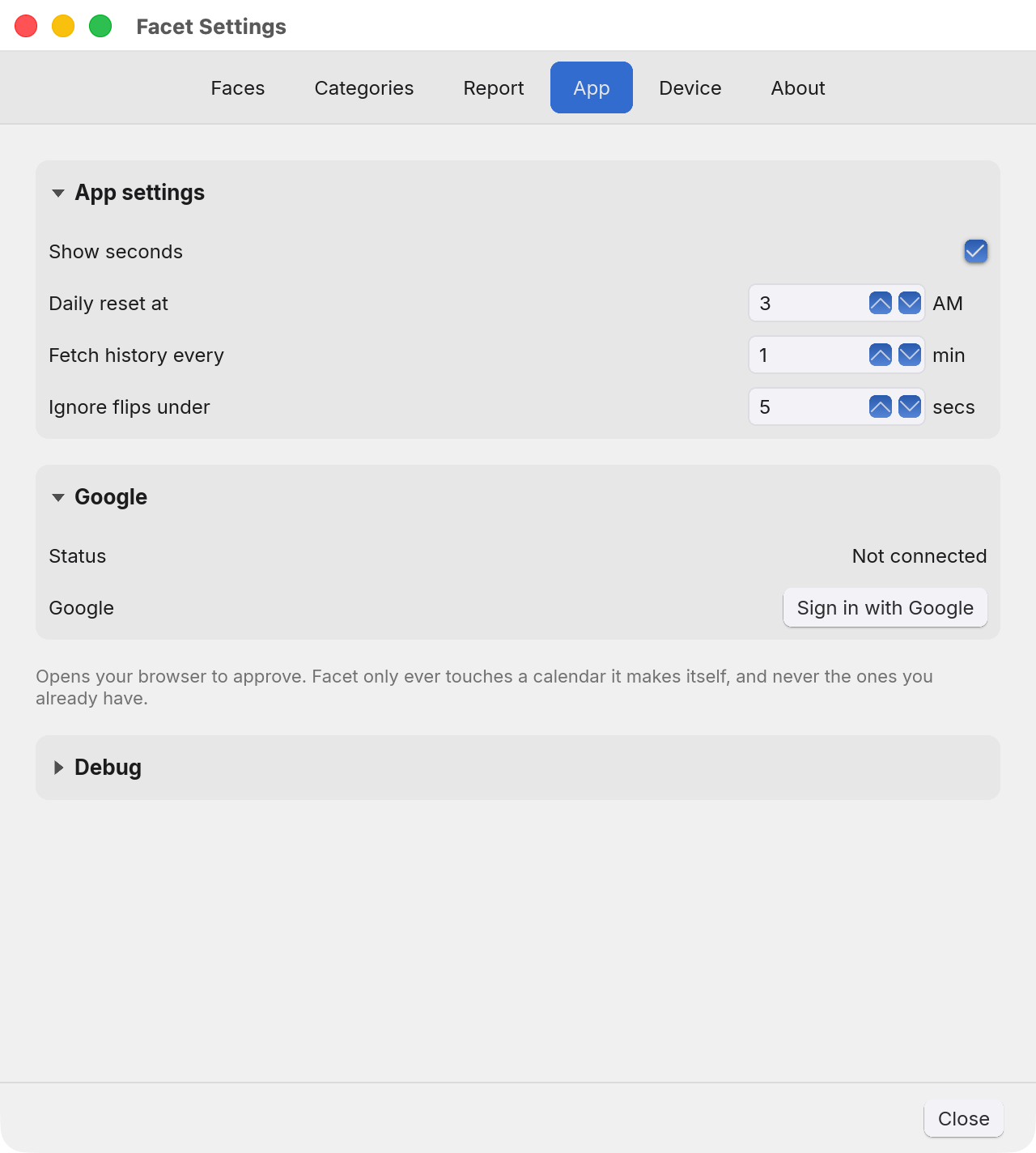
Facet's own preferences, as opposed to the device's.
Three panels: how the app behaves, the optional Google Calendar connection, and the debug trace, which is folded when the tab opens. Everything here is read as it is used rather than at startup, so a change takes effect at once and nothing needs restarting. The one exception is named in the Debug panel: a new folder for the trace is used from the next time Facet starts.
App settings
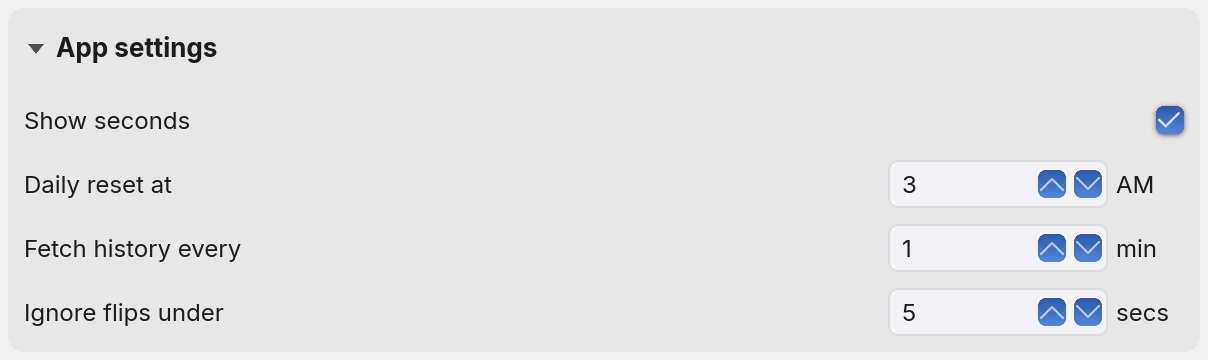
- Show seconds. Whether a time is written to the second or to the minute. It governs the status icon's tooltip and the Report tab; the Faces tab always shows seconds. With it off, durations and totals are rounded to the nearest minute and clock times are cut to the minute, so 13:08:10 to 13:08:50 reads 13:08 to 13:08, 0:01.
- Daily reset at. The hour your day rolls over, from 12 AM (midnight) to 11 AM in whole hours, 3 AM until you change it. It is the boundary everything measured in days uses: the daily limits on the Categories tab, the figure in the tooltip and the ranges on the Report tab. Not midnight, so an evening that runs past twelve stays on the day it started rather than being cut in half.
- Fetch history every. How often Facet asks the connected device for its history, from 1 to 60 minutes. It keeps a stretch in progress up to date and catches anything that turning the device did not report by itself. It does nothing while no device is connected: what Facet times by hand is kept up to date separately.
- Ignore flips under. How short a stretch has to be before Facet treats it as the device being turned past a face on the way to another rather than time spent on it. Stretches shorter than this are dropped, and one exactly this long is kept. Five seconds by default, and the range is 0 to 30: set it to 0 to count everything. A skipped flip is dropped rather than added to the session that follows it, which loses a couple of seconds per turn and is the cheaper of the two mistakes. Changing it does not alter time already recorded.
Optional, and off until you connect an account. After signing in, press Create calendar. Facet then puts every session it has recorded and not yet sent, earlier ones included, into a calendar of its own as events titled with the category name, and does the same for each new session after it, so your tracked time sits alongside the rest of your day.
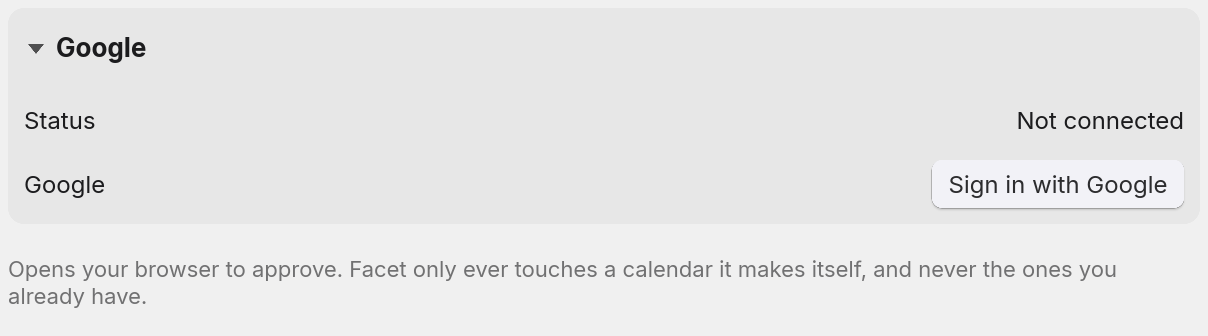
Facet only ever touches a calendar it makes itself. It never asks for permission to read or change the calendars you already have, which is why there is no calendar to choose here: there is one, Facet made it, and it is the only one the app can see. The privacy page is the full account of what is asked for and what is done with it.
- Status. Each time you open the App tab Facet checks the saved sign-in with Google. It reads Not connected, Checking..., Connected, Connected, not checked, Cannot be checked, Signed out or Sign-in expired. When it reads Signed out or Sign-in expired, the Sign in with Google button comes back.
- Sign in with Google opens your browser to approve it, and reads Signing in... while it waits, for up to five minutes. What comes back is the account name and email shown in the rows above.
- Calendar names the one Facet made. Click the name to edit it, Return saves and Escape cancels, and editing it renames the calendar at Google rather than relabelling it here. An empty name becomes Facet. If there is no calendar, the row offers Create calendar instead, and if the calendar has gone at Google, Facet forgets it and offers to make a new one.
- Delete removes that calendar at Google, along with everything Facet has written to it, so it asks first.
- Disconnect signs the account out and stops any further syncing. The calendar itself is left alone, and signing back in on the same account picks it up again with its history intact.
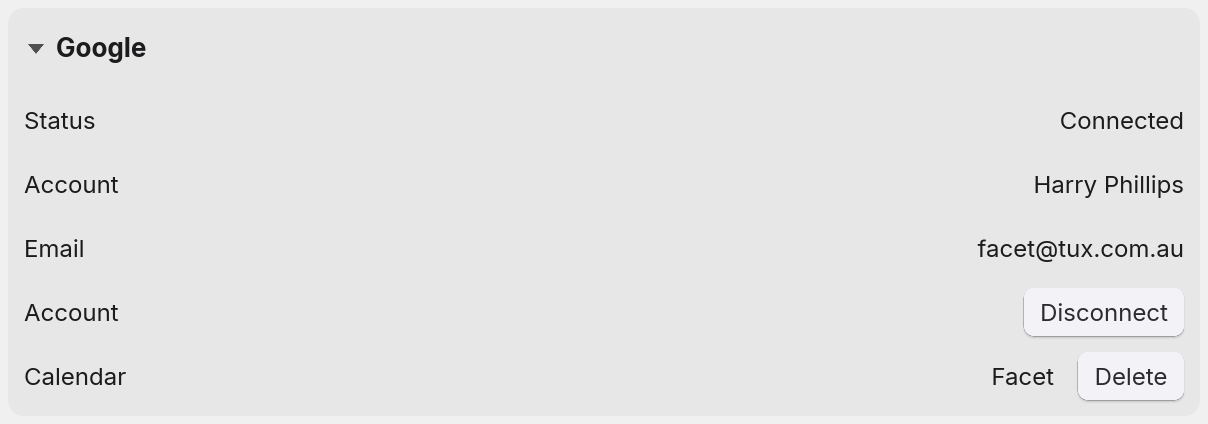
Once you are signed in the panel shows the account and its calendar, as above: Disconnect sits on the Account row and Delete on the Calendar row.
Syncing is not a queue. Each pass sends every session that has not reached Google yet, oldest first, at most 50 at a time, and marks one as synced only once Google has been asked for it back and it matches. A session that failed to send because the network was down is simply still unsent. After a failed attempt Facet waits a minute before trying again, and it also tries at each launch, whenever a device's history is filed, and when a calendar is made or confirmed.
Debug
Folded shut and switched off until something goes wrong. Turn it on and Facet writes down what it is doing as it does it: which face went up and when, the sessions it recorded and what it made of each one, every Bluetooth exchange with the device, and what Google made of the events sent to it. That record is the trace, and it is what to send in when a fault is easier to show than to describe.
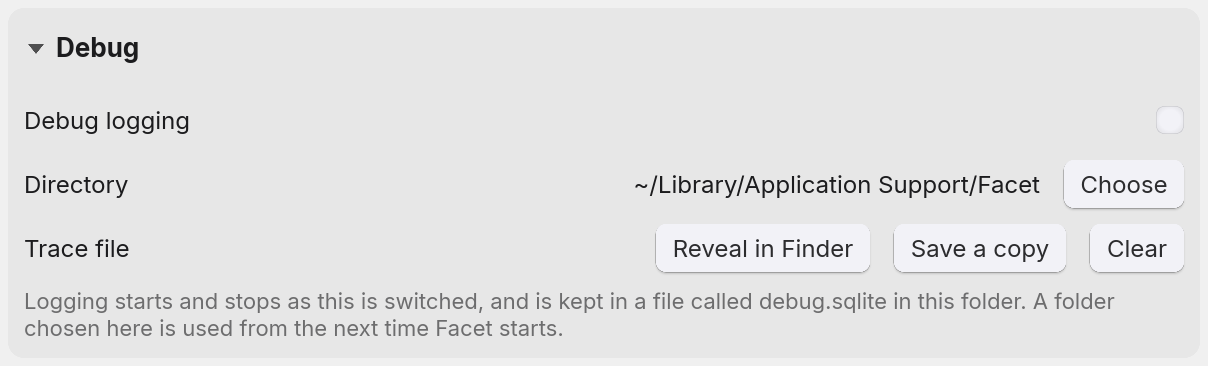
You never have to go looking for the file. The Trace file row hands it to you: one button opens the folder it is in, one saves a copy to attach to an email, and one empties it.
Sending a trace in
- Turn Debug logging on. Recording starts as you tick it. There is nothing to restart and no window to keep open.
- Press Clear, if there is a trace from an earlier time. What you send is then the fault rather than a fortnight of everything that preceded it.
- Do the thing that goes wrong.
- Press Save a copy and email the file to
facet@tux.com.au, with a sentence about what you did and
what you expected instead. The copy is offered in your Downloads folder, named for the moment
you took it, like
facet-debug-2026-10-05-16.52.10.sqlite. - Turn Debug logging off. Recording stops as you untick it, and the file stays where it is: the three buttons go on working with logging off, so a trace can be sent long after it was gathered.
The rows
- Debug logging. Whether the trace is being gathered. It takes effect as you switch it, so ticking it starts the recording at that moment and unticking it stops it. Off on a fresh install: it is here to be turned on while an issue is being looked into, not left running for no reason. The switch writes its own first and last line, so a trace says where it begins, and one that stops says it was switched off rather than that the app died.
- Directory. Which folder the trace is kept in,
~/Library/Application Support/Faceton a Mac and~/.local/share/Faceton Linux until you change it, which is where Facet already keeps its own database. The row writes~for your home folder. Choose opens the system's folder picker, and this is the one thing here that waits for the next start. The file is always calleddebug.sqlite, so there is no name to pick. If the folder you chose cannot be used, an unmounted disk for instance, Facet keeps the trace in its default folder instead and notes that on the first line. - Reveal in Finder opens the folder holding the trace, so you can see how big it has grown or drag it somewhere yourself. On a Mac the file is selected. On Linux the button keeps the same label and opens the folder in your file manager without selecting the file.
- Save a copy writes the copy you send. A copy rather than the file itself, and asked of SQLite rather than copied byte for byte, because the app may be part way through writing to it: what lands is one consistent file that opens on its own.
- Clear empties the trace, and asks first, since it cannot be undone and what it destroys is the evidence. Nothing else is affected: your recorded time, categories and settings are in a different file.
The three buttons are greyed while there is no trace to act on. The file is not made until
there is a first line to write into it, so a computer that has never had logging on has no
debug.sqlite at all.
What is in it, and where it goes. The trace is a record of what the app did rather than a copy of what you recorded: faces, timings, ids, and the app's own reasoning about them. Some of it names things, though. The device's name and its Bluetooth identifier are in there, so are the names of your categories in some lines, the email address of the Google account you connected and the name of the calendar Facet made. Every Bluetooth exchange is recorded in full, so the PIN the device is logged in with is written to the trace in plain text each time Facet connects. Your Google password never reaches Facet at all, and the token that stands in for it is not written to the trace. Look through a trace before you send it to anyone.
About that PIN. It is not there for security, which is why the trace does not hide it. Its job is to stop Facet connecting to someone else's device by mistake, a colleague's on the next desk, say: their device and yours are on different PINs, so each copy of Facet connects only to its own. The PIN is a random six-digit number, so the chance of two devices in the same office ending up on the same one is one in a million.
Nothing leaves your computer on its own. The trace is a file in a folder on your own disk until you attach it to something and send it.
Anything else
Questions and faults: facet@tux.com.au.